
Posts
JavaScript Spread Syntax Explained
JavaScript’s spread syntax, ..., lets you expand one value into another context. It is small, useful, and easy to misunderstand. The practical version is this: In an array literal, spread adds values from an …
In this article
JavaScript’s spread syntax, ..., lets you expand one value into another context. It is small, useful, and easy to misunderstand.
The practical version is this:
- In an array literal, spread adds values from an iterable.
- In a function call, spread passes values from an iterable as separate arguments.
- In an object literal, spread copies an object’s own enumerable properties.
Spread expands a source into the place where you use it.
When I first learned to use spread syntax I was a little confused about what it was actually doing. The three little dots looked simple enough, but JavaScript has a long history of making simple-looking things weird.
So let’s walk through it slowly.
Let’s start with an object named hand:
const hand = {
  thumb: 1,
  index: 2,
  middle: 3,
  ring: 4,
  pinkie: 5
};
Inside a new object literal, spread copies the properties from hand into that new object:
const handCopy = { ...hand };

console.log(handCopy);
// { thumb: 1, index: 2, middle: 3, ring: 4, pinkie: 5 }
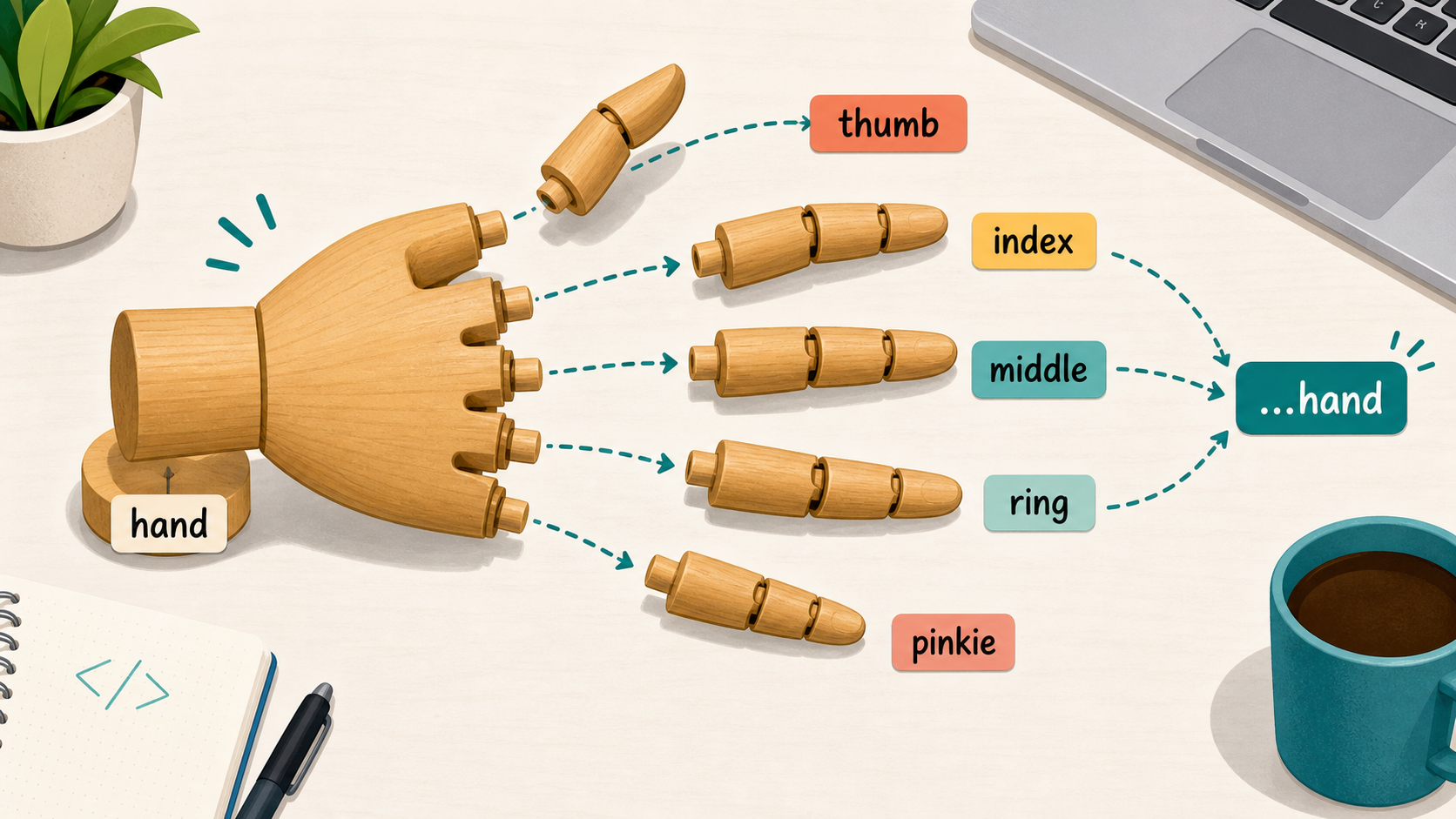
In my head, spread syntax is like laying out the parts of a hand so they can be arranged somewhere new. The metaphor has a limit—the object properties do not become independent variables—but it is a useful picture for expansion.
What Spread Syntax Looks Like
Spread syntax uses three dots before a value:
...thing
What JavaScript accepts depends on where you use spread.
Array literals and function calls require an iterable, such as an array, string, Set, or Map. Object literals copy own enumerable properties from a value. These are related conveniences, but they do not use exactly the same underlying mechanism.
For now, the big idea is still simple: the surrounding syntax tells JavaScript where the contents should go.
const numbers = [1, 2, 3];

console.log(...numbers);
// 1 2 3
The array itself was not passed to console.log as one argument. Its three items were passed as three separate arguments.
Tiny syntax. Big difference.
Spreading Arrays
Let’s start with an array.
const fingers = ['thumb', 'index', 'middle'];
If we want to create a new array that includes everything in fingers, plus a few more values, we can use spread syntax.
const hand = [...fingers, 'ring', 'pinkie'];

console.log(hand);
// ['thumb', 'index', 'middle', 'ring', 'pinkie']
This line:
const hand = [...fingers, 'ring', 'pinkie'];
is basically saying:
“Create a new array, put every item from fingers into it, then add ring and pinkie after that.”
Without spread syntax, you might have done something like this:
const hand = fingers.concat(['ring', 'pinkie']);
That works too, but spread syntax is usually easier to read once you know what the dots are doing.
Copying Arrays With Spread
Spread syntax is also commonly used to copy an array.
const original = ['thumb', 'index', 'middle'];
const copy = [...original];

console.log(copy);
// ['thumb', 'index', 'middle']
That gives us a new array containing the same first-level values.
Important detail: it is a new array.
console.log(original === copy);
// false
The values inside may be the same, but the array itself is a different array.
This is useful when you want to add or replace top-level values without mutating the original array.
const original = ['thumb', 'index', 'middle'];
const updated = [...original, 'ring'];

console.log(original);
// ['thumb', 'index', 'middle']

console.log(updated);
// ['thumb', 'index', 'middle', 'ring']
The original array stayed untouched.
That matters in codebases that treat state as immutable. A new array makes the update explicit and keeps changes to the outer collection predictable.
Combining Arrays
Spread syntax also makes it simple to combine arrays.
const leftHand = ['left thumb', 'left index'];
const rightHand = ['right thumb', 'right index'];

const hands = [...leftHand, ...rightHand];

console.log(hands);
// ['left thumb', 'left index', 'right thumb', 'right index']
You can also place values before, between, or after the arrays.
const hands = ['start', ...leftHand, 'middle', ...rightHand, 'end'];

console.log(hands);
// ['start', 'left thumb', 'left index', 'middle', 'right thumb', 'right index', 'end']
The spread parts are unpacked in the exact position where you put them.
Spreading Strings
Strings can also be spread because strings are iterable.
Fancy word. Simple behavior.
const name = 'Rob';
const letters = [...name];

console.log(letters);
// ['R', 'o', 'b']
JavaScript walked through the string one Unicode code point at a time and put each value into the new array. That distinction matters for some emoji and combined characters, which may still occupy more than one array item. If you need user-perceived characters, use a grapheme-aware tool such as Intl.Segmenter.
Pretty neat. Also more nuanced than “one character at a time,” because Unicode enjoys keeping us humble.
Spreading Iterables Into Function Calls
Spread syntax can also be used when calling a function.
Let’s say we have a function that expects three separate arguments.
function add(a, b, c) {
  return a + b + c;
}
And we have an array of numbers.
const numbers = [1, 2, 3];
Without spread syntax, we might call the function like this:
add(numbers[0], numbers[1], numbers[2]);
That works, but it is clunky.
With spread syntax we can do this:
const total = add(...numbers);

console.log(total);
// 6
The array values were expanded and passed into the function as separate arguments.
So this:
add(...numbers);
becomes this:
add(1, 2, 3);
That is one of the places where spread syntax really earns its keep.
Spreading Objects
Now let’s get deeper into objects.
Here is that hand object again.
const hand = {
  thumb: 1,
  index: 2,
  middle: 3,
  ring: 4,
  pinkie: 5
};
If we want to copy that object, we can use spread syntax inside a new object.
const handCopy = { ...hand };

console.log(handCopy);
// { thumb: 1, index: 2, middle: 3, ring: 4, pinkie: 5 }
Again, this creates a new object.
console.log(hand === handCopy);
// false
The own enumerable properties were copied into a new object, but hand and handCopy are not the same object. Inherited and non-enumerable properties are not copied. Enumerable symbol-keyed properties are.
Adding Object Properties With Spread
You can also use spread syntax to copy an object and add new properties at the same time.
const hand = {
  thumb: 1,
  index: 2,
  middle: 3
};

const fullHand = {
  ...hand,
  ring: 4,
  pinkie: 5
};

console.log(fullHand);
// { thumb: 1, index: 2, middle: 3, ring: 4, pinkie: 5 }
This is one of the most common ways you will see object spread used.
It is especially useful when you want to create an updated version of an object without changing the original.
const user = {
  name: 'Sam',
  role: 'reader'
};

const updatedUser = {
  ...user,
  role: 'admin'
};

console.log(user);
// { name: 'Sam', role: 'reader' }

console.log(updatedUser);
// { name: 'Sam', role: 'admin' }
The original user object did not change. We created a new object and changed the role value in the new object.
Property Order Matters
When spreading objects, source order matters.
If the same property key is defined more than once, the last value wins.
const user = {
  name: 'Sam',
  role: 'reader'
};

const updatedUser = {
  ...user,
  role: 'admin'
};

console.log(updatedUser);
// { name: 'Sam', role: 'admin' }
The role property from user was copied first.
Then role: 'admin' came after it and overwrote the previous value.
But if we reverse the order:
const updatedUser = {
  role: 'admin',
  ...user
};

console.log(updatedUser);
// { role: 'reader', name: 'Sam' }
Now the role from user wins because it came last.
This is a small detail that can cause big confusion.
When object spread is used for an update, put the original object first and the changed properties after it. Future-you will have a much easier time seeing what changed.
Spread Makes Shallow Copies
Here is the part that trips people up.
Spread syntax makes a shallow copy.
That means it creates a new outer array or object, but it does not recursively clone nested values.
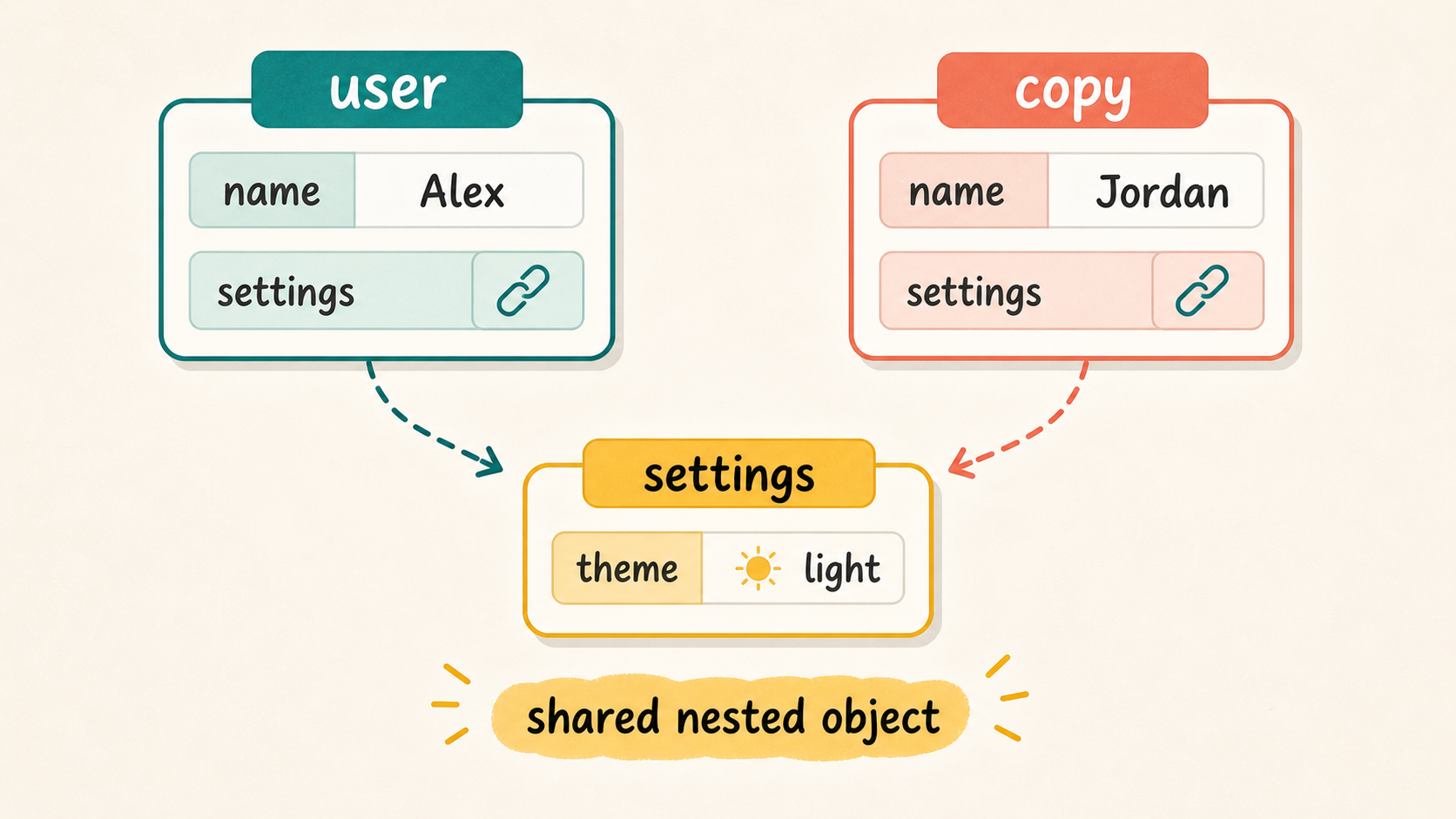
If one of those values is another object or array, the nested object or array is still shared.
const user = {
  name: 'Sam',
  settings: {
    theme: 'dark'
  }
};

const copy = { ...user };

copy.settings.theme = 'light';

console.log(user.settings.theme);
// light
Wait. What?
We changed copy.settings.theme, but user.settings.theme changed too.
That happened because settings is an object. Spread copied the reference to that nested object, not a brand new nested object.
So user.settings and copy.settings still point to the same nested object.
To copy the nested object too, you need to spread that level as well.
const user = {
  name: 'Sam',
  settings: {
    theme: 'dark'
  }
};

const copy = {
  ...user,
  settings: {
    ...user.settings,
    theme: 'light'
  }
};

console.log(user.settings.theme);
// dark

console.log(copy.settings.theme);
// light
Now the outer user object and the nested settings object are both new. Any objects nested inside settings would still be shared unless you copied those levels too.
Still, this does not mean you should manually spread ten levels deep. If your object is that nested, there may be a better data shape hiding in there somewhere. For a genuine deep copy of supported data types, structuredClone() may be a better fit—but deep cloning and immutable updates are different jobs, so choose it deliberately.
Spread Syntax vs. Rest Syntax
Here is where the three dots get extra annoying.
The same three-dot token is used by both spread syntax and rest syntax, depending on where it appears.
Spread expands values out.
const numbers = [1, 2, 3];

console.log(...numbers);
// 1 2 3
Rest gathers values together.
function logNumbers(...numbers) {
  console.log(numbers);
}

logNumbers(1, 2, 3);
// [1, 2, 3]
Same three dots. Opposite direction.
Spread:
add(...numbers);
The array is opened up and sent into the function as individual arguments.
Rest:
function add(...numbers) {
  // numbers is an array
}
The individual arguments are gathered into one array.
If the dots are used where values are being provided, think spread.
If the dots are used where values are being collected or bound, think rest.
That mental model is not the language specification, but it gets you pretty far without making your eyes glaze over.
Common Spread and Rest Examples
Here are a few examples you will probably see in real code.
Spread an Object, Then Destructure It
Spread and object destructuring often appear together, but they do different jobs.
const partialHand = {
  thumb: 'thumb',
  index: 'index finger',
  middle: 'middle finger'
};

const hand = {
  ...partialHand,
  ring: 'ring finger',
  pinkie: 'pinkie'
};

const {
  thumb,
  index: pointerFinger,
  ...otherFingers
} = hand;

console.log(thumb);
// thumb

console.log(pointerFinger);
// index finger

console.log(otherFingers);
// { middle: 'middle finger', ring: 'ring finger', pinkie: 'pinkie' }
There are four related ideas in that example:
...partialHandis spread syntax. It copies properties intohand.thumbuses object destructuring shorthand to create a variable with the same name as the property.index: pointerFingerreads theindexproperty into a variable namedpointerFinger....otherFingersis rest syntax. It gathers the properties that were not already destructured.
Notice that the right side is simply hand, not ...hand. Destructuring happens in the pattern on the left side of =. Spread syntax needs a surrounding destination, so an expression such as ...hand cannot stand by itself.
Add an Item to an Array
const items = ['one', 'two'];
const updatedItems = [...items, 'three'];

console.log(updatedItems);
// ['one', 'two', 'three']
Add an Item to the Beginning of an Array
const items = ['two', 'three'];
const updatedItems = ['one', ...items];

console.log(updatedItems);
// ['one', 'two', 'three']
Merge Objects
const defaults = {
  theme: 'light',
  showSidebar: true
};

const preferences = {
  theme: 'dark'
};

const settings = {
  ...defaults,
  ...preferences
};

console.log(settings);
// { theme: 'dark', showSidebar: true }
Update One Property
const todo = {
  id: 1,
  text: 'Learn spread syntax',
  complete: false
};

const completedTodo = {
  ...todo,
  complete: true
};

console.log(completedTodo);
// { id: 1, text: 'Learn spread syntax', complete: true }
Remove a Property Without Mutating the Original
This one actually uses rest syntax during destructuring, but you will see it near spread-heavy code all the time.
const user = {
  id: 1,
  name: 'Sam',
  password: 'super-secret'
};

const { password, ...publicUser } = user;

console.log(publicUser);
// { id: 1, name: 'Sam' }
The password property was pulled out, and the remaining properties were gathered into publicUser. This does not delete the password from user; it only creates another object without that property.
See? Same dots. Different job.
JavaScript, everybody.
When Not to Use Spread
Spread syntax is useful, but it is not magic seasoning you sprinkle on everything.
Avoid spread when it makes the code harder to understand.
const result = [...[...[...[1, 2, 3]]]];
Please do not.
Also be careful with very large arrays.
someFunction(...veryLargeArray);
Spreading a huge array into a function call can run into engine limits because each item becomes a separate argument.
For normal day-to-day arrays this is usually fine. For large or untrusted collections, prefer iteration or an API that accepts the collection directly.
And remember the shallow copy rule. Spread is not a deep clone.
If you need a true deep clone, spread syntax is not enough by itself. If you only need to update one nested branch, copy that branch instead of cloning the entire object graph.
Quick Recap
Spread syntax uses ... to expand values out.
With arrays:
const numbers = [1, 2, 3];
const moreNumbers = [...numbers, 4, 5];
With objects:
const user = { name: 'Sam' };
const admin = { ...user, role: 'admin' };
With function calls:
const numbers = [1, 2, 3];
add(...numbers);
The main things to remember:
- array spread expands values from an iterable into a new array
- function-call spread passes iterable values as separate arguments
- object spread copies own enumerable properties into a new object
- object and array spread create shallow copies
- the last object property wins when the same key appears more than once
...can also represent rest syntax, depending on where it is used
Once you get used to it, spread syntax becomes one of those JavaScript features you reach for constantly.
Just keep an eye on which direction the dots are moving.